FibraThe best way to listen to music in your server!
This guide explains how to Create A Custom Music Bot Hosted By Fibra. Follow the screenshots in order and you will have the bot ready in a few minutes.
Step-by-step Setup
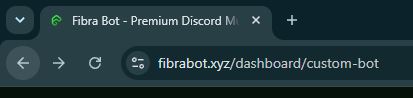
Navigate to Fibra Custom Bot Dashboard
First, go to fibrabot.xyz/dashboard/custom-bot in your browser. This is where you'll manage and deploy your custom bot.
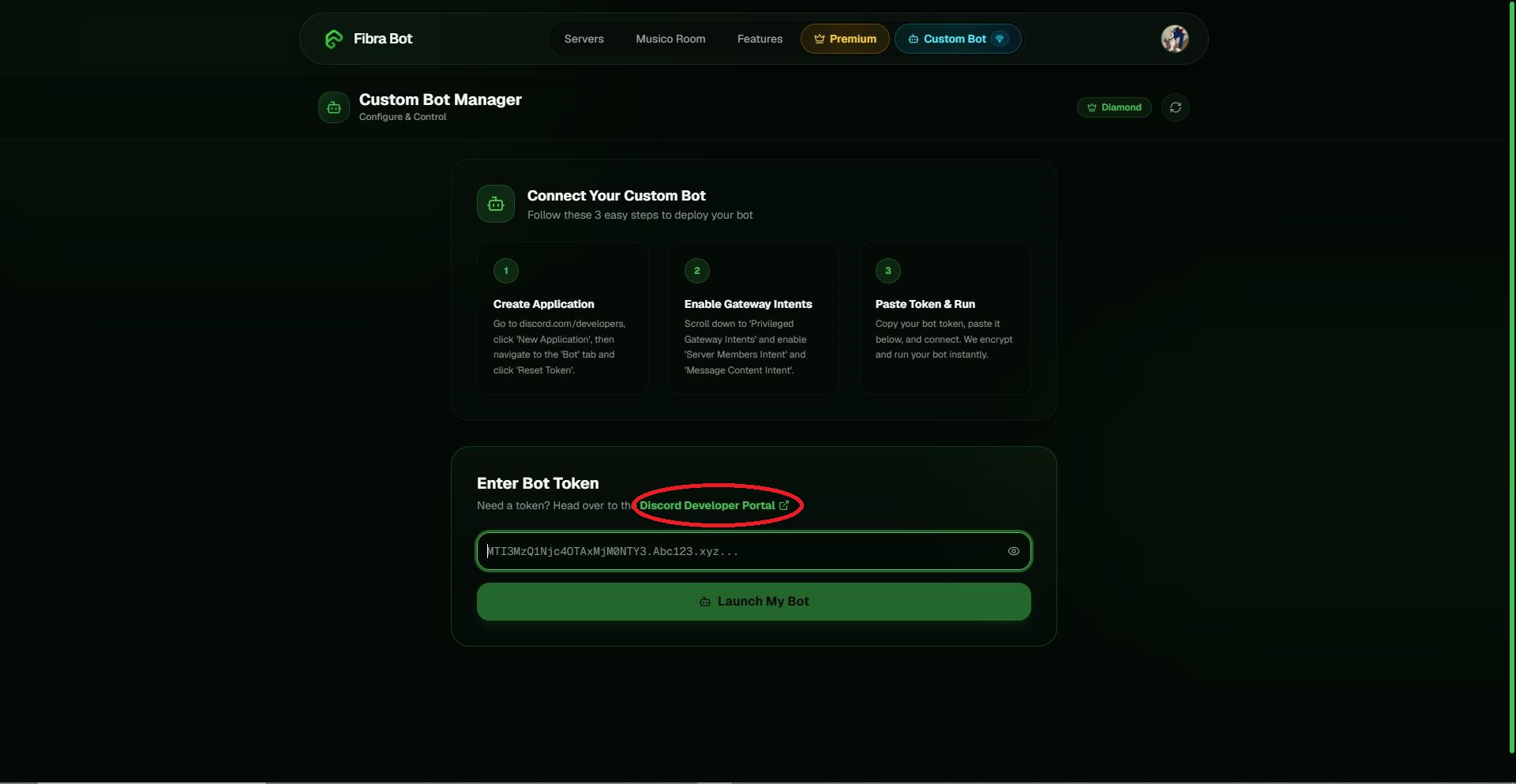
Click on Discord Developer Portal Button
On the Fibra Custom Bot dashboard, click the "Discord Developer Portal" button. This will take you to the Discord Developer Portal where you'll create your application.
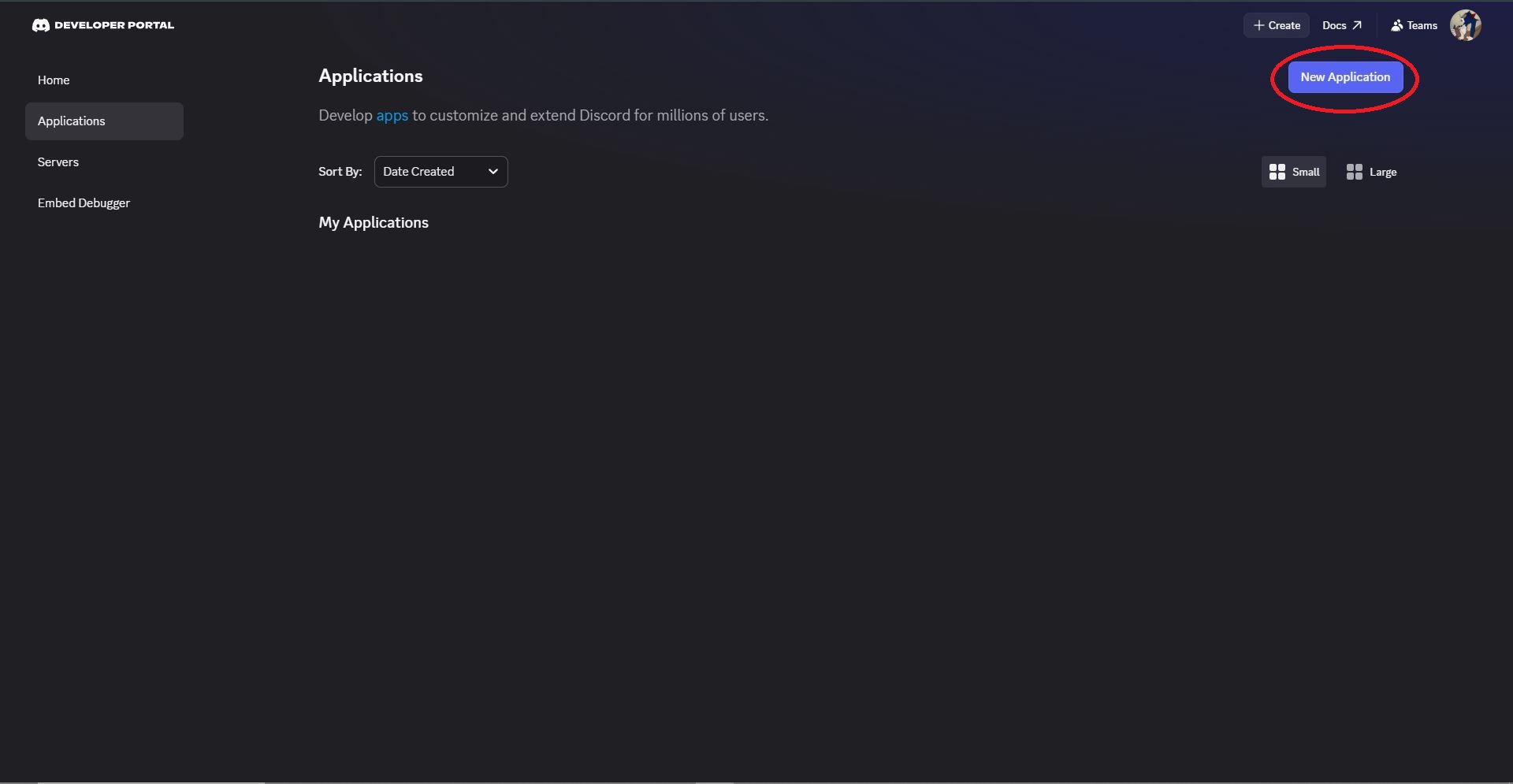
Create a New Application
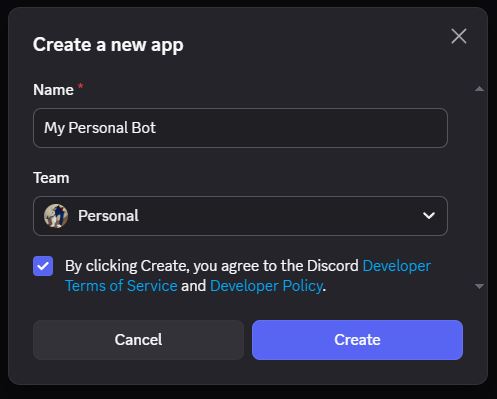
In the Discord Developer Portal, click the "New Application" button. Then, choose a unique name for your bot (e.g., "My Personal Bot") and select Personal as your team. Finally, click the "Create" button.
Enabling Bot Intents
In the left sidebar of the Discord Developer Portal, click on "Bot" to access your bot's configuration settings.
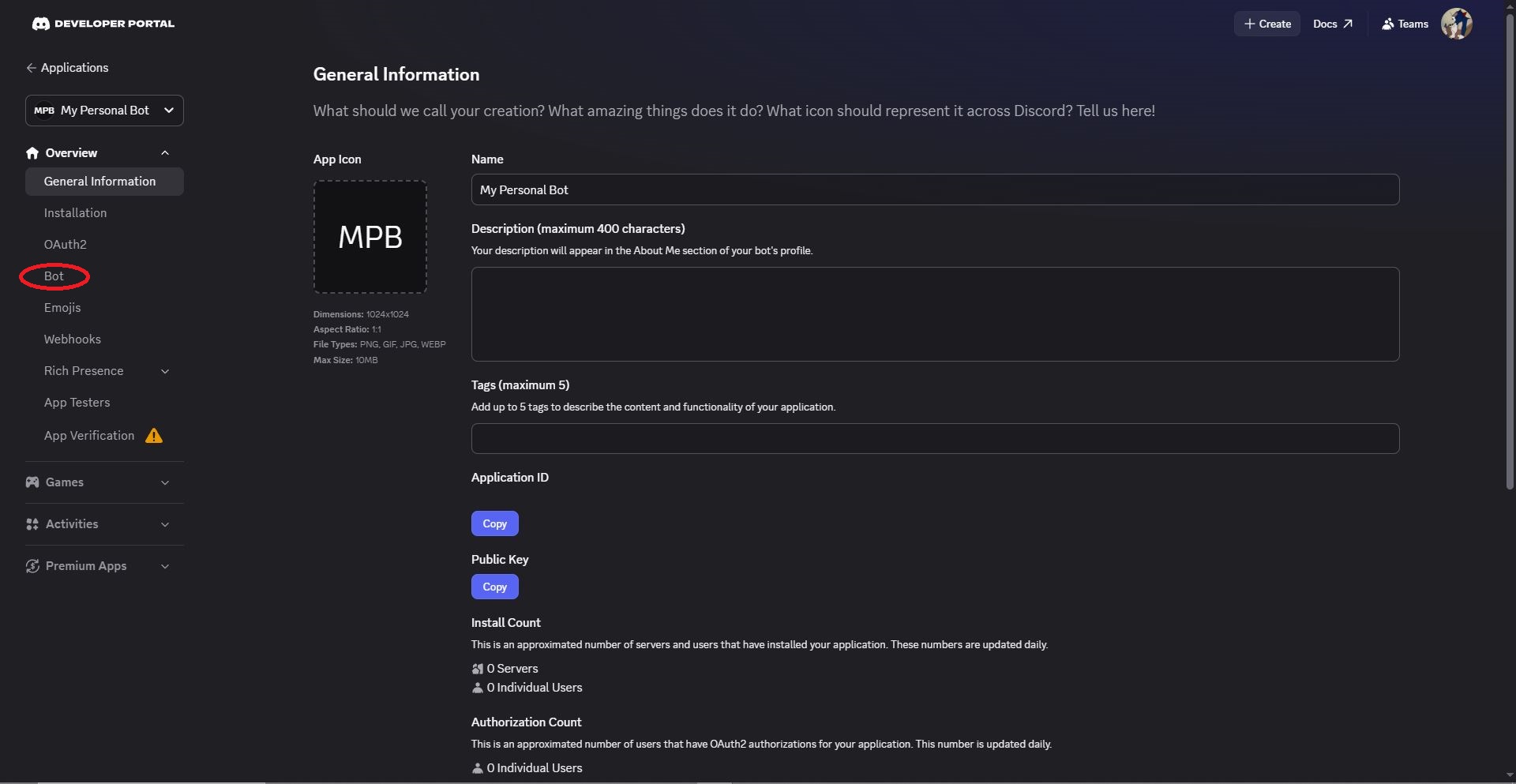

Scroll down to the "Privileged Gateway Intents" section and enable these three options:
- Presence Intent
- Server Members Intent
- Message Content Intent
These intents are required for your custom Fibra bot to function properly.
Generating Token
In the same Bot tab, scroll up to the "Token" section and click the "Reset Token" button. This will generate a new token for your bot.
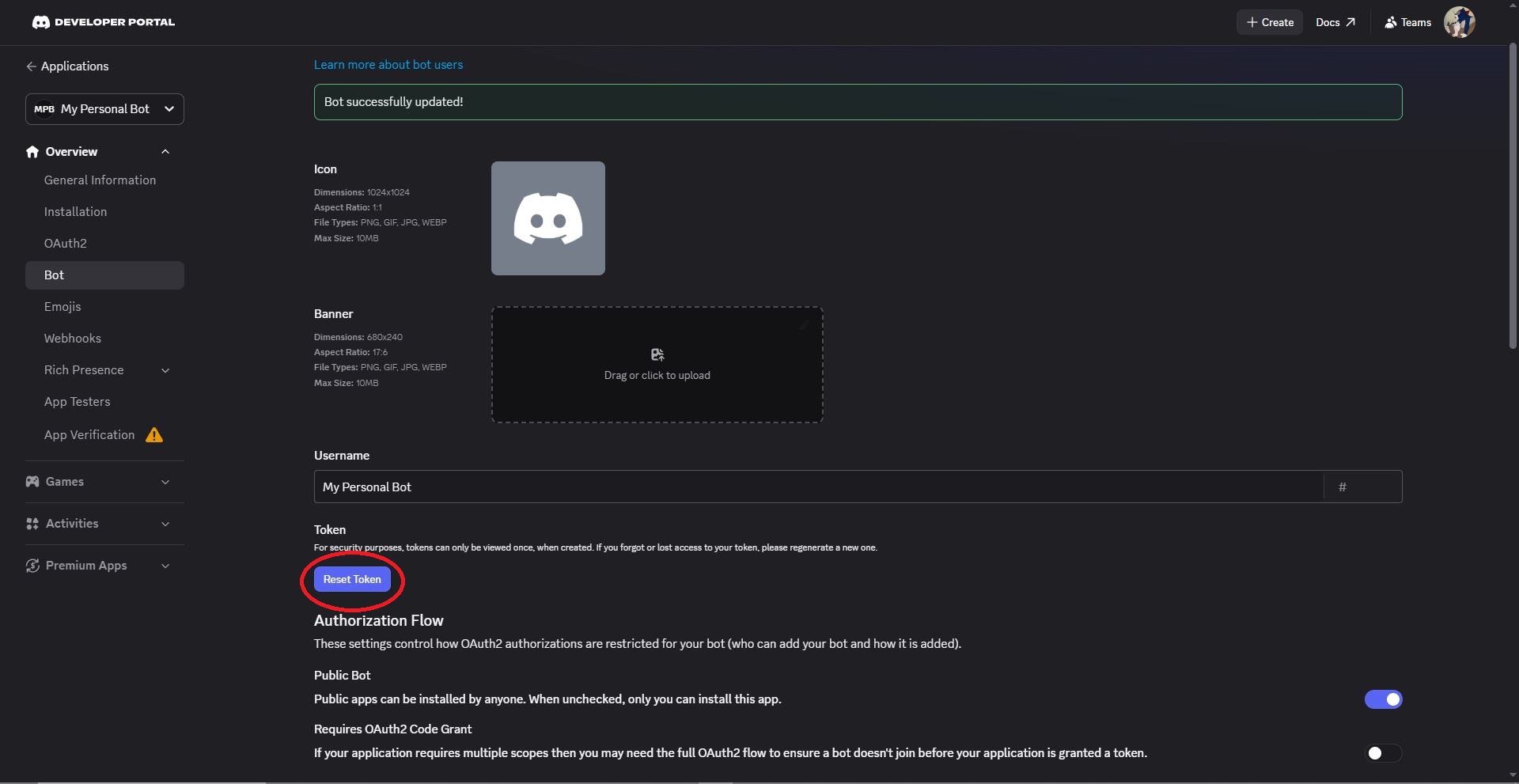

After that click on the "Copy" button.
⚠️ Important: Resetting the token will invalidate any previous token. Make sure to copy the new token immediately.
📌Tip: Keep your token secure and never share it publicly. You'll paste it in the Fibra dashboard in the next step.
Paste Token & Launch Your Bot
Go back to fibrabot.xyz/dashboard/custom-bot, paste the token you just copied into the "Enter Bot Token" field, and click the "Launch My Bot" button.

🚀 Success! Your bot will be deployed instantly. You'll see it appear online in your Discord server.
Invite Your Bot to a Server
After launching, you'll be automatically taken to your custom bot dashboard. To invite your bot to a server, click the "Invite Link" button.

📌 Tip: You need the "Manage Server" permission in the server you want to add the bot to.
Select Your Server
In the Discord authorization window, choose the server you want to add your bot to from the dropdown menu, then click "Continue" and then click "Authorize".

Activate Server Slot
After inviting the bot, navigate back to your custom bot dashboard. Scroll down to the "Active Servers" category, click "Activate Server Slot", and select the server you just added your bot to.

✅ Done! Your custom Fibra bot is now fully set up and active in your server.
Your Bot is All Set & Working!
Your custom Fibra bot is now fully operational in your Discord server. You can manage your bot's appearance, username, activity status, and embed colors directly from the custom bot dashboard.
 🎨 Customization Options: From the dashboard you can:
- Change your bot's username and avatar
- Set custom activity presence (e.g., "Listening to Fibra")
- Choose embed accent colors
- Manage server slots and bot token